
Kiosk Mode
When Kiosk Mode is enabled, the tablet "locks down" to the Kind Kiosk app. It's important to enable Kiosk Mode to ensure that your Kiosk is always ready to accept donations.
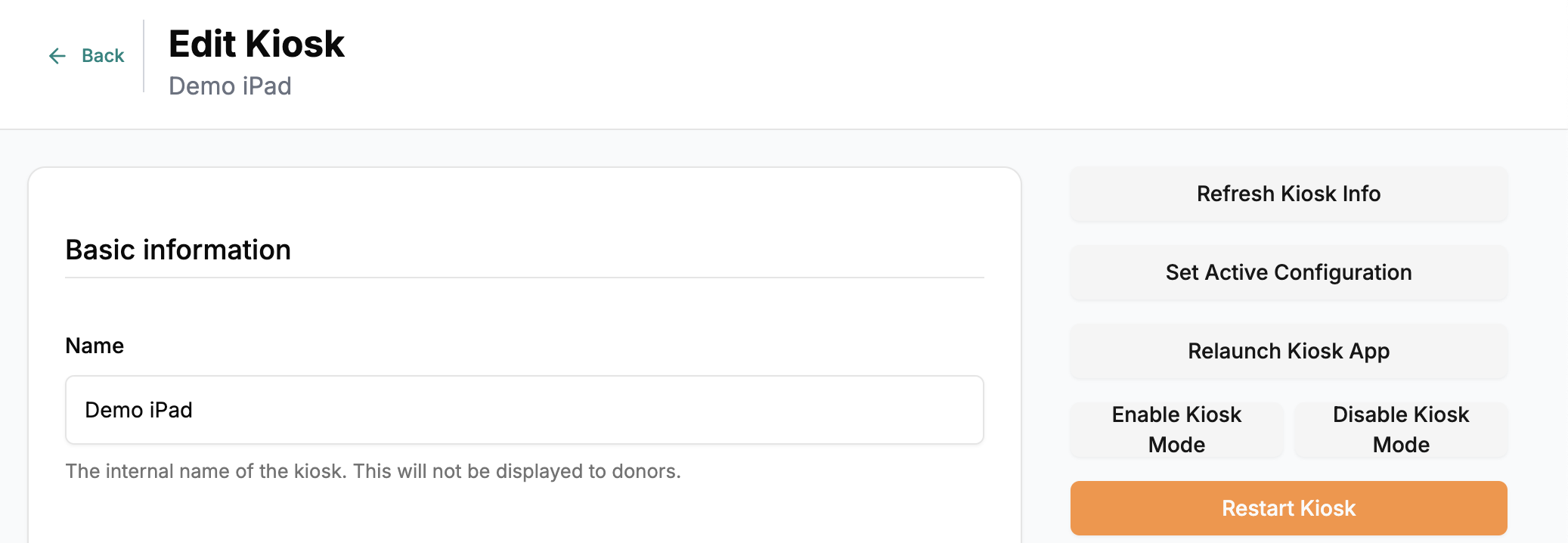
If you need to access the tablet's Settings, you need to disable Kiosk Mode. You can disable Kiosk Mode remotely by selecting the button in this section. Once disabled, you can swipe out of the Kind Kiosk app to access Settings. This is helpful if you need to switch Wi-Fi networks or turn off Wi-Fi to have the Kiosk connect via Cellular Data.
You can also enable or disable Kiosk Mode directly on your Kiosk or Handheld by opening the Admin Panel.
On the Tabletop or Full Size Kiosks, tap 5 times in the bottom left corner of the screen. On the Handheld, tap 5 times in the bottom right of the screen to open the Admin Panel.
Be sure to enable Kiosk mode once you're done adjusting settings!