
Salesforce Nonprofit Success Pack
Kind Kiosk's Salesforce integration is built for the Nonprofit Success Pack (NPSP). Once connected, donations from your Kiosk flow straight into Salesforce - no manual exports or imports.
About the integration
The integration is built on NPSP's standard objects - Contacts and Household Accounts, Opportunities (Donations), General Accounting Units (GAUs), GAU Allocations, and Campaigns. It's designed to work with a stock NPSP install: we add some default mappings, but you can override them as needed.
Our integration will never update existing data in Salesforce. It only creates new records (Contacts, Opportunities, and GAU Allocations) and reuses an existing Contact when it can match a donor. Anonymous donations can be tracked against a dedicated Kind Kiosk record, or you can reuse an existing record for this purpose.
Once connected, we sync your GAUs and Campaigns so you can reference them in your Kiosk Configurations.
Installation
Our Premium Integrations, like Salesforce NPSP, are available on the Growth and Enterprise plans.
1. Install the Kind Kiosk app in Salesforce
Log in to your Salesforce account and open the installation link for your environment:
Production: https://login.salesforce.com/packaging/installPackage.apexp?p0=04tgL000000CyZtQAK
Sandbox: https://test.salesforce.com/packaging/installPackage.apexp?p0=04tgL000000CyZtQAK
You may be asked to log in again to authorize. On the installation screen, the "By" line and publisher will appear blank, and you'll see a warning that the app is not yet authorized for distribution via AppExchange. This is expected until the app completes Salesforce's AppExchange review.
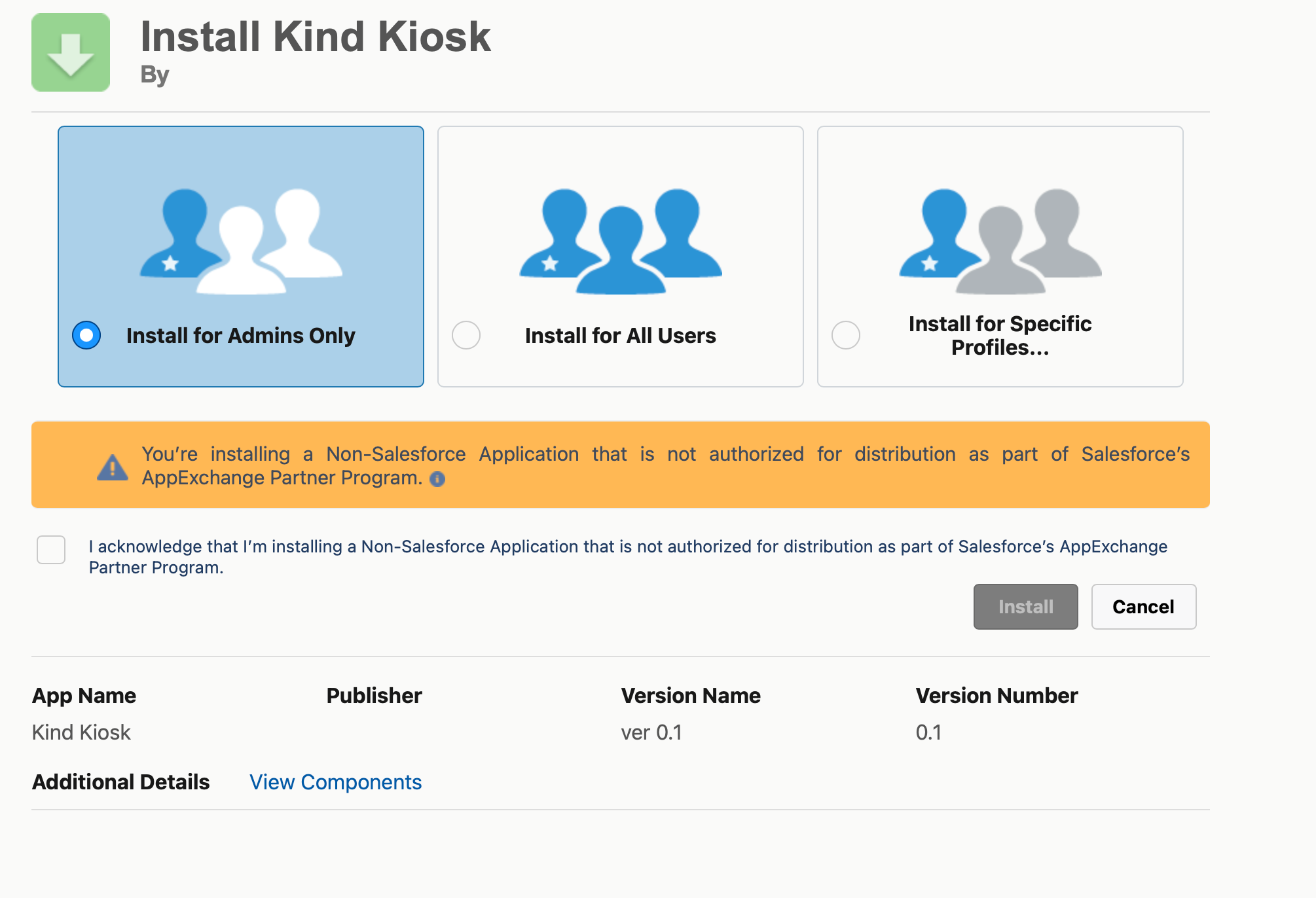
We recommend connecting with a dedicated integration user rather than an individual's standard account. If you'd like to explicitly scope permissions, the integration requires:
API Enabled
Read & Write on: Contacts, Accounts, Opportunities, Opportunity Contact Roles, and Leads
Read Only on all standard/custom objects (for field mapping configuration)
2. Connect from your Kind Kiosk dashboard
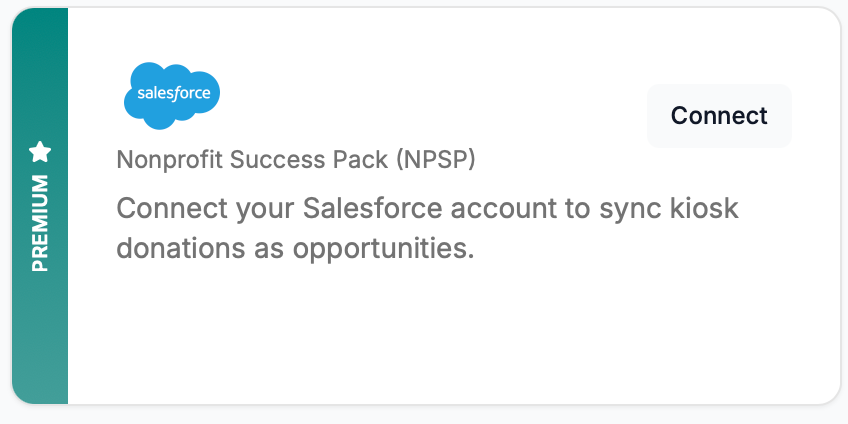
Go to Settings > Integrations in your Kind Kiosk dashboard and click Connect on the Salesforce NPSP card.
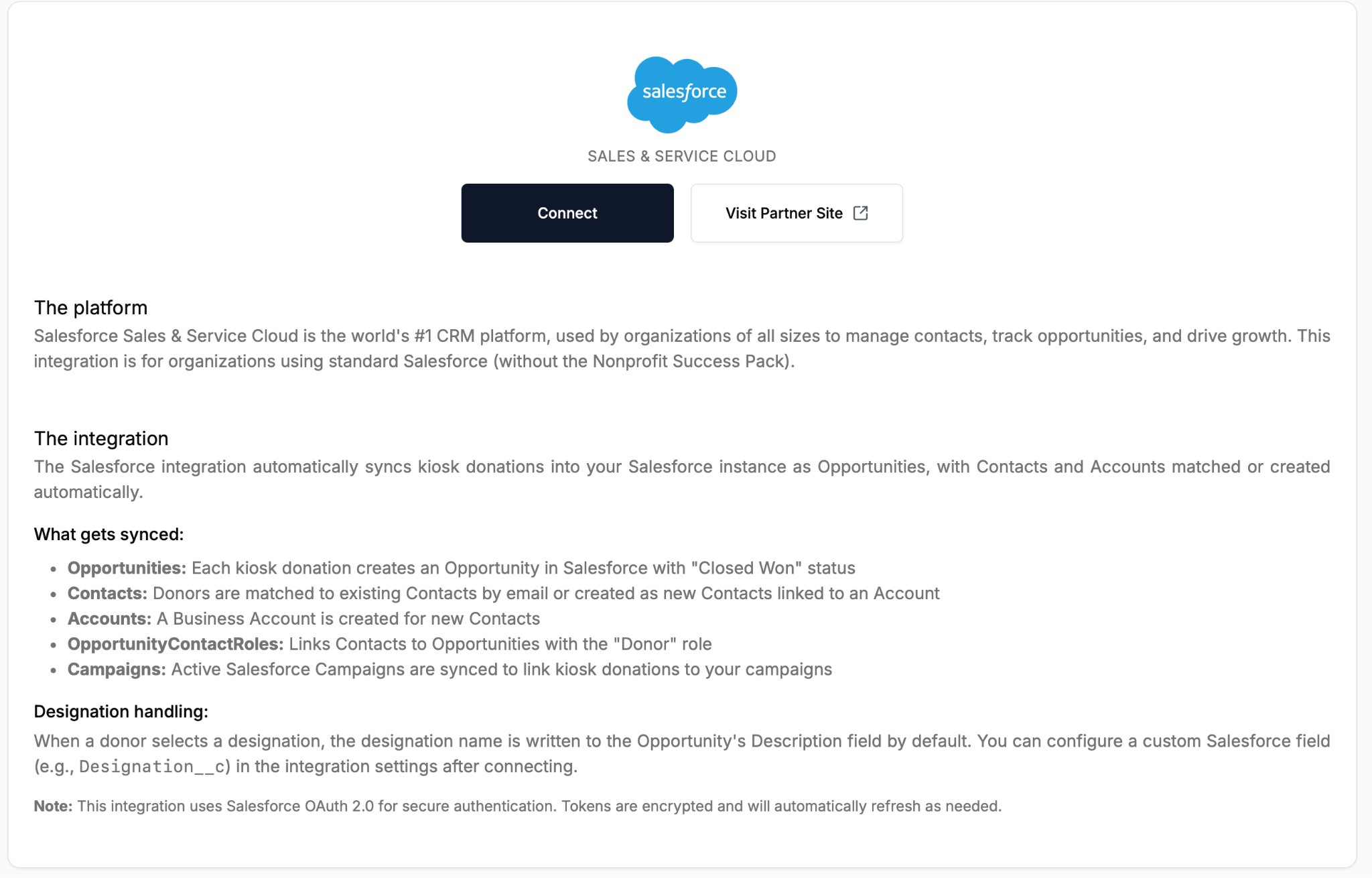
Click Connect on the integration detail page.
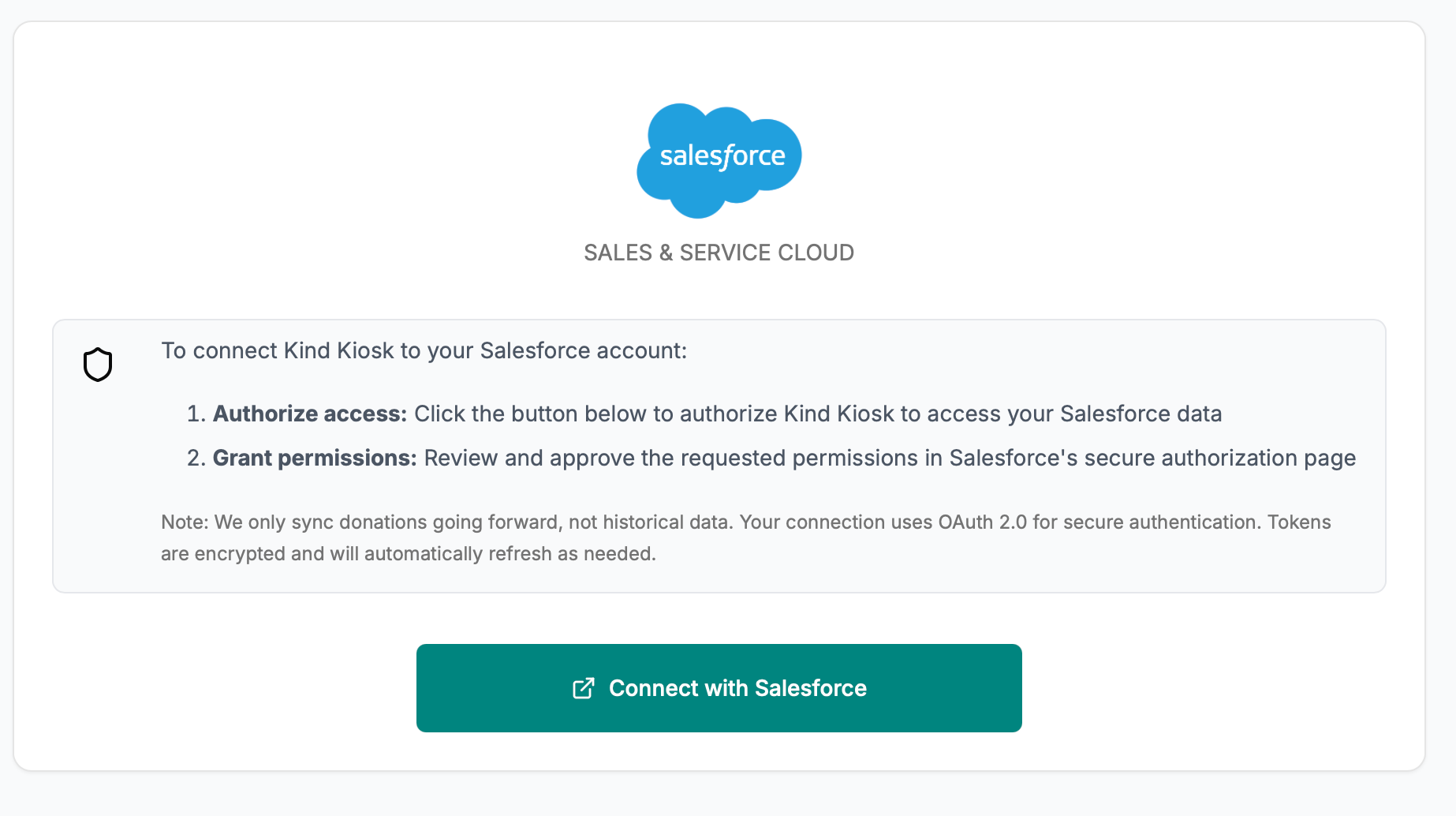
Click Connect on the Authorization Confirmation screen. We recommend authorizing with a dedicated integration user rather than an individual's account, so the connection isn't tied to one person. Depending on your org's settings, the consent step may require Salesforce administrator approval before the connection completes.
3. Configure your field mappings
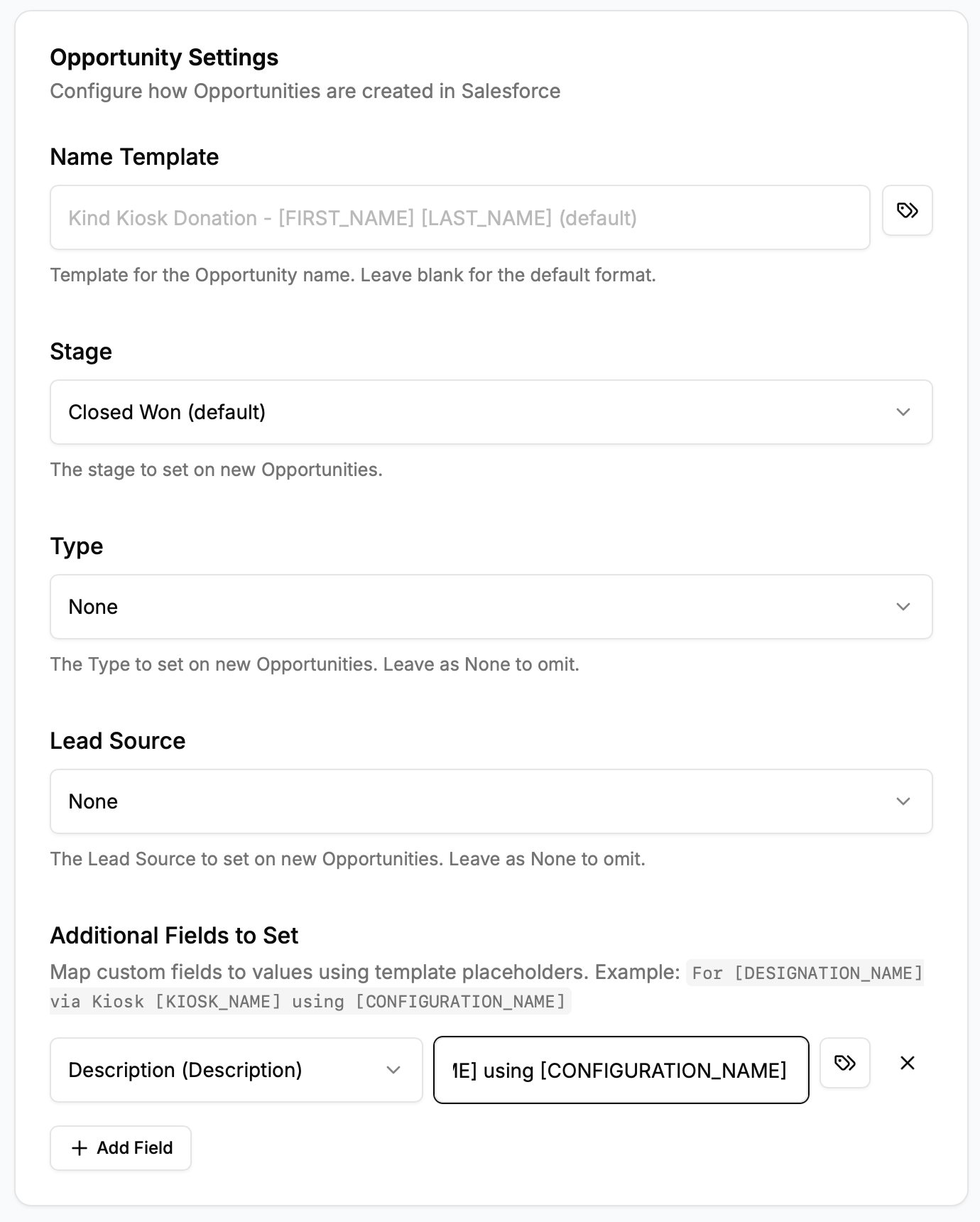
Set up your Salesforce field mappings from the integration settings in your dashboard. At a minimum, we recommend mapping the Name and Description fields on the Opportunity so each record carries useful information from Kind Kiosk.
That's it! Donations will sync to Salesforce going forward.