
Blackbaud Raiser's Edge NXT
Installation
Our Raisers Edge NXT integration is being submitted to the Blackbaud Marketplace. Until that submission is live, please follow the steps below to connect it.
Install Kind Kiosk to Raiser's Edge NXT
Go to the Manage page in the Blackbaud Marketplace. You must be logged in as an administrator.
Click Connect App, enter
4978c4c3-b83d-4f4e-9966-a242bab1e153as the Application ID, and click Connect.
Authorize the integration user
Click Connect on the Raiser's Edge NXT card in the Integrations Settings on your Kind Kiosk dashboard.
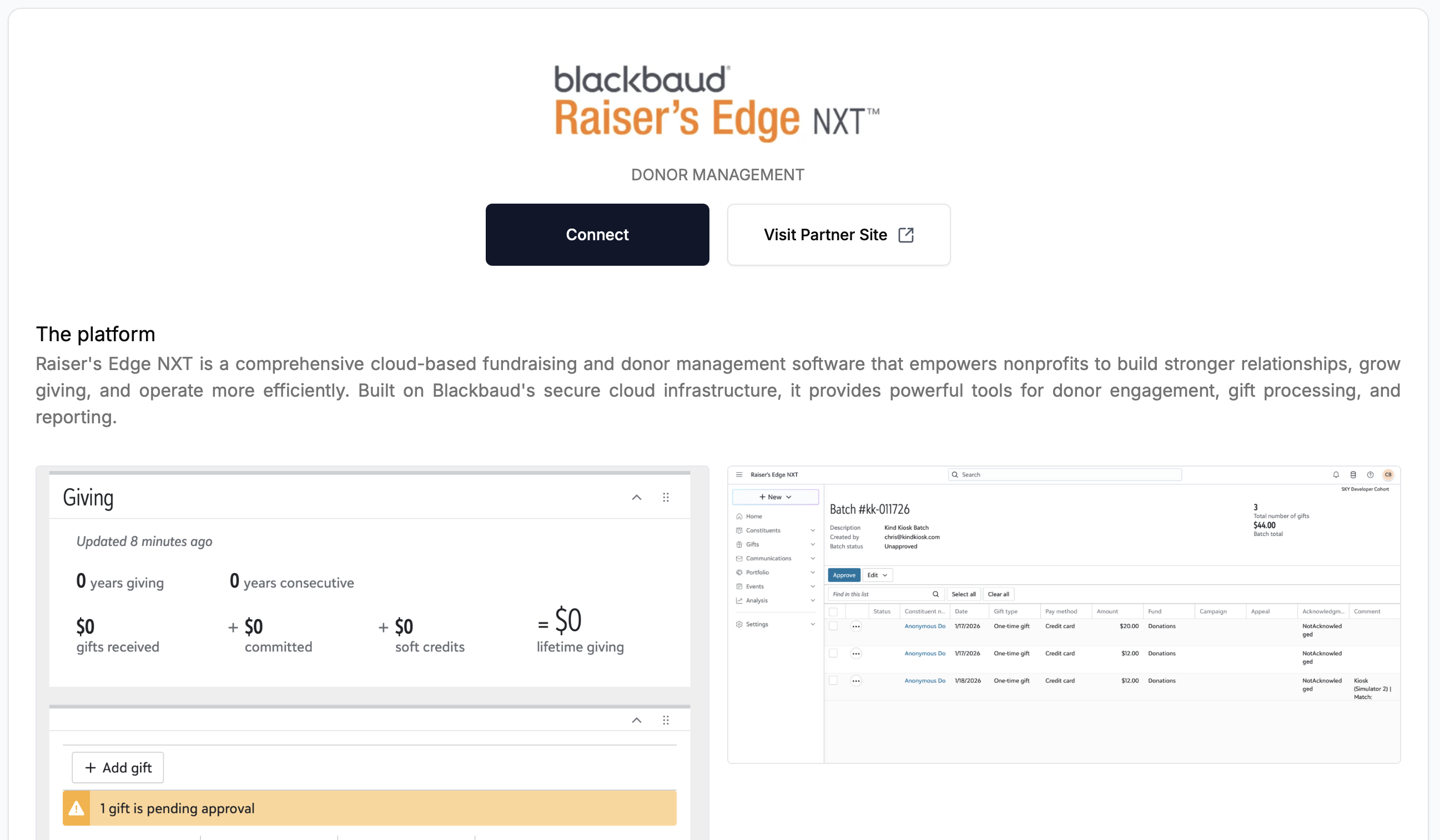
Click Connect on the Raiser's Edge NXT informational page.
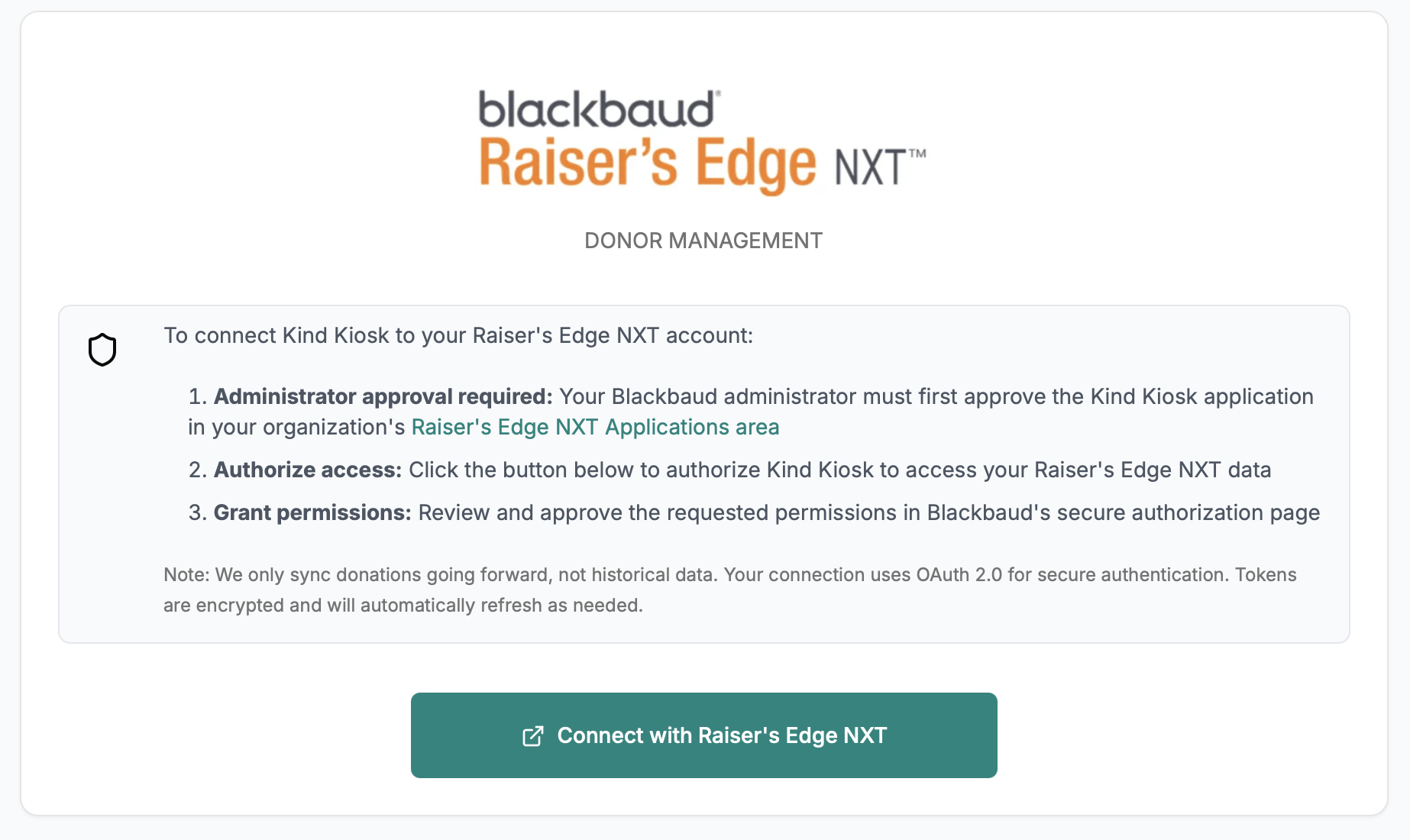
Ensure that you've installed Kind Kiosk to Raiser's Edge NXT as mentioned above. Click the Connect with Raiser's Edge NXT button to authorize the integration.
While not required, we recommend you setup a separate Integration User that has all the same access as a standard user account in your organization. If roles change or someone leaves the organization, it ensures that the data sync is not broken.
That's it! We'll immediately start syncing Funds and Campaigns from Raiser's Edge.
How it works
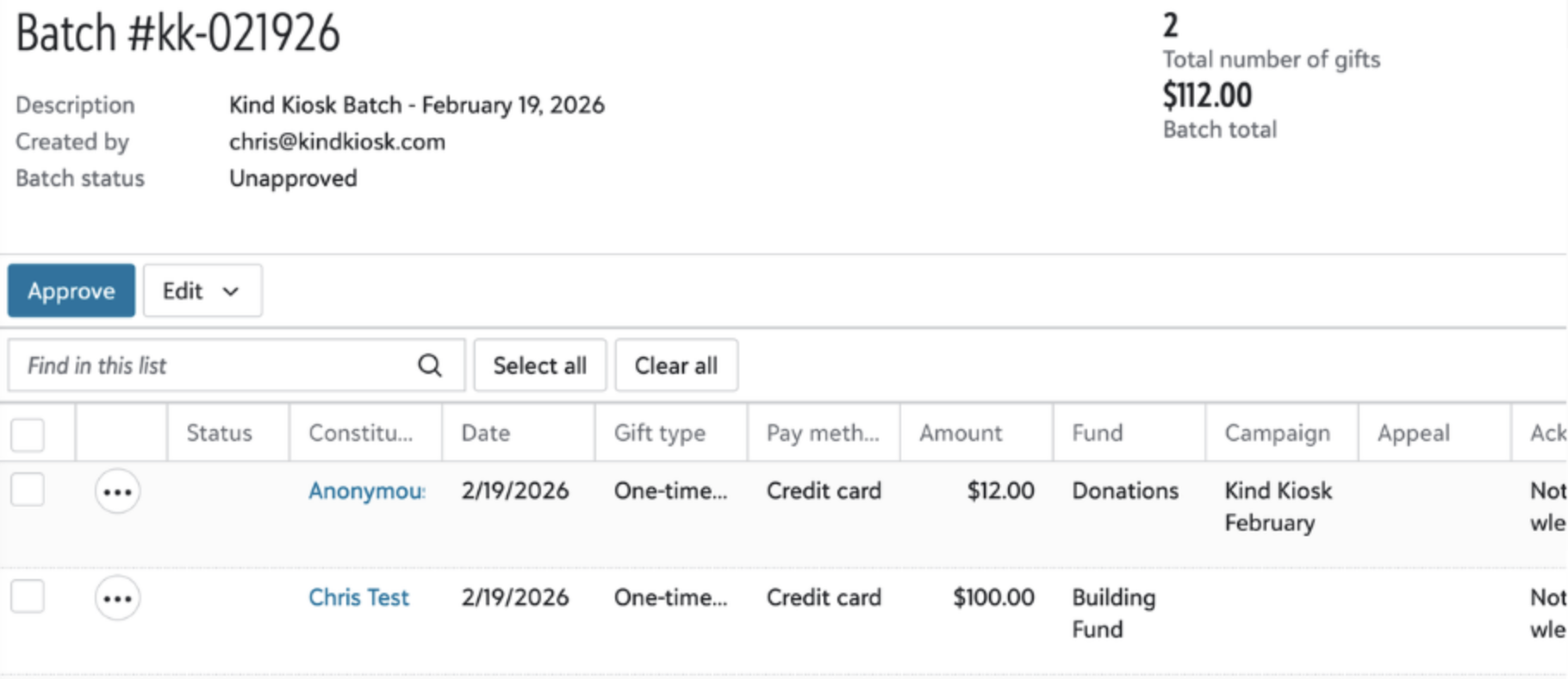
A donation from the Kiosk immediately shows in your Kind Kiosk Dashboard. We then sync that data to Raiser’s Edge, creating a batch based on the current date (ex: #kk-021926). Each gift on that date will use this same batch. The next day, you review gifts and approve the batch once everything looks good.
Enrich Constituent Data
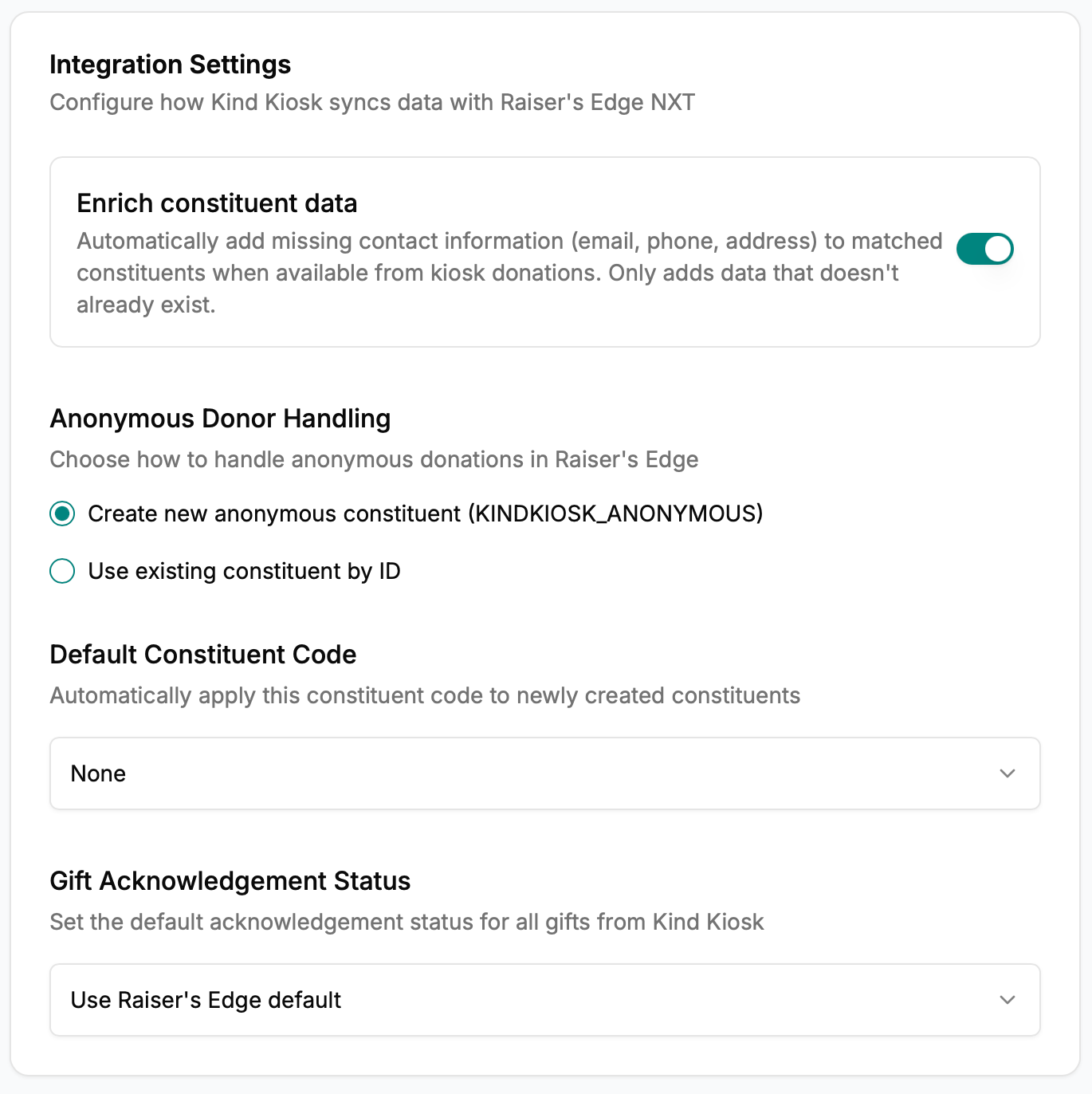
Our integration will never replace data in your system. If we identify an email, address, or phone number that was collected from your Kiosk but does not exist in Raiser’s Edge, we'll add it.
Constituent Matching and "Needs Review"
When we sync data to Raiser’s Edge, we try to use the same set of rules Blackbaud does to determine a match. If we are confident, you'll see exactly what was matched. If we aren't confident, we mark it as “needs review”. Here are a few examples:


Within the Batch Review for Raiser’s Edge, you'll have this same information listed as a comment to help your team with approvals.
Customize the integration
Need to control the Constituent we use for anonymous donations? Have a Constituent Code you want to apply to every Kind Kiosk donation? Want to explicitly set the Acknowledgement Status? You can do all that from the Integration settings page in the Kind Kiosk Dashboard.
Can I map existing fields?
We will be improving the integration shortly to allow full custom mapping of fields based on the work we've done for Salesforce. Please reach out to us with any questions!